
Searching E-Court Materials in Prism: From a Question to a Source Row
· Prism
Search matter material in Prism to obtain the source, exact passage, and follow-up question together. Find documents describing a defined service or event and retain the working table in the project.
1. Select the collection
Open the matter in Prism’s E-Court app. Inspect the available collection and synchronization state. Identify the matter, proceeding, and subject for the output.
For a public example of the table structure, open decision 910/9714/22, which provides material for comparing work descriptions.
2. Use this prompt
Find mentions of this service in the available matter material. For each, give the document, date, exact passage, and follow-up question. Group results by document.
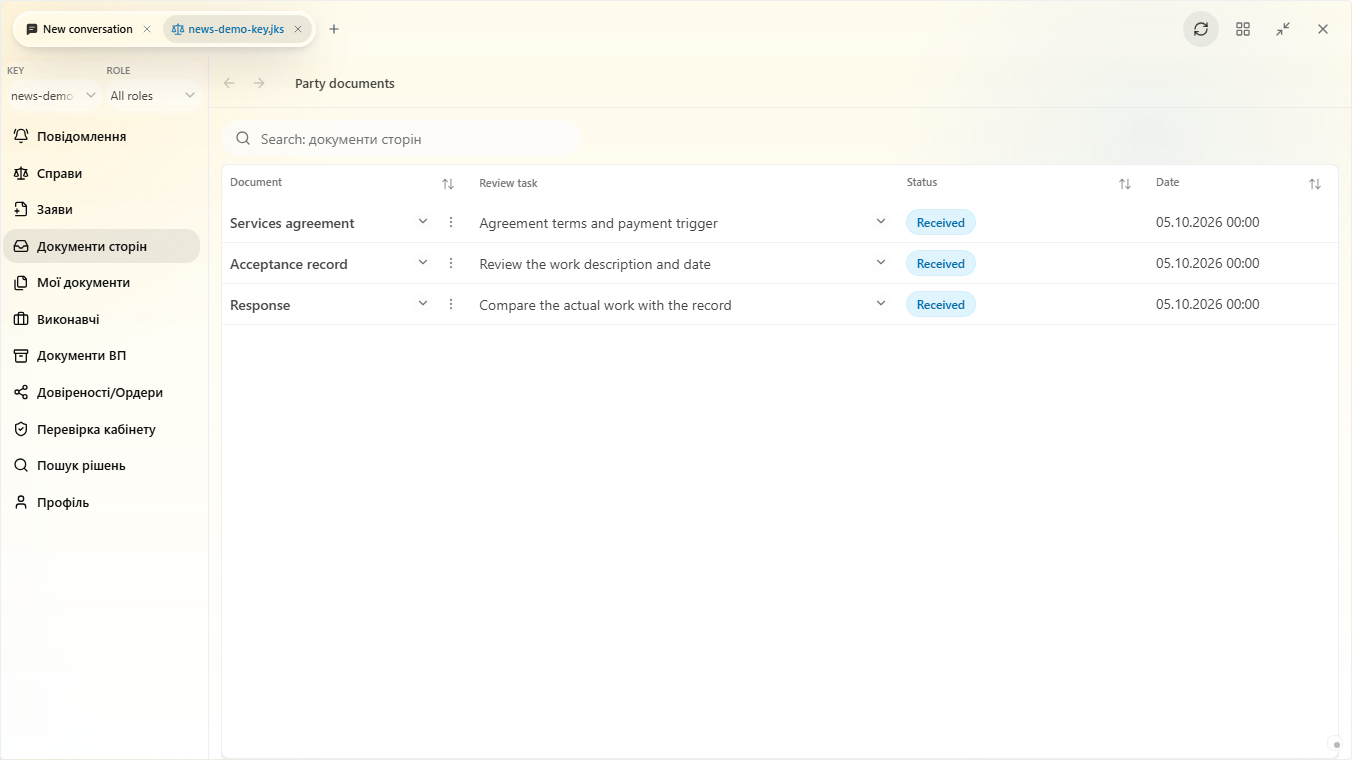
3. Review the shortlist
| Field | Next action |
|---|---|
| Document | Open the text |
| Passage | Read its surrounding context |
| Question | Select a specific research task |
| Output file | Save the table in the project |
Choose one row for the second request: “Match this description against the agreement clause and show both passages.” Then add the next document needed.
4. Retain the result
Name the table for the question and matter. Keep it beside the sources. Give a colleague the particular row and remaining task.
Choose Prism for a search that can continue with document analysis and a specific task. When new material arrives, ask Prism to extend the table and identify changed rows. Search becomes a sequence of work on a defined question. Begin with Prism research.