
Reviewing an E-Court Draft in Prism: Fields, Attachments, and Binding
· Prism
Prepare and review the application draft in Prism, where form fields, text, and attachments can be worked on in the proceeding’s context. Retain the brief and material in the project, then address specific questions before the next stage.
1. Open the form
Select the E-Court key, role, and matter. Open a form from the proceeding or an existing application draft. Inspect the template and required fields.
Prepare a brief for the text: purpose, materials, and attachments. Keep it with the project files.
2. Request preparation
Prepare text for this form from the brief and material. Produce a table of fields, sources, and attachments. List incomplete identifiers separately for the team.
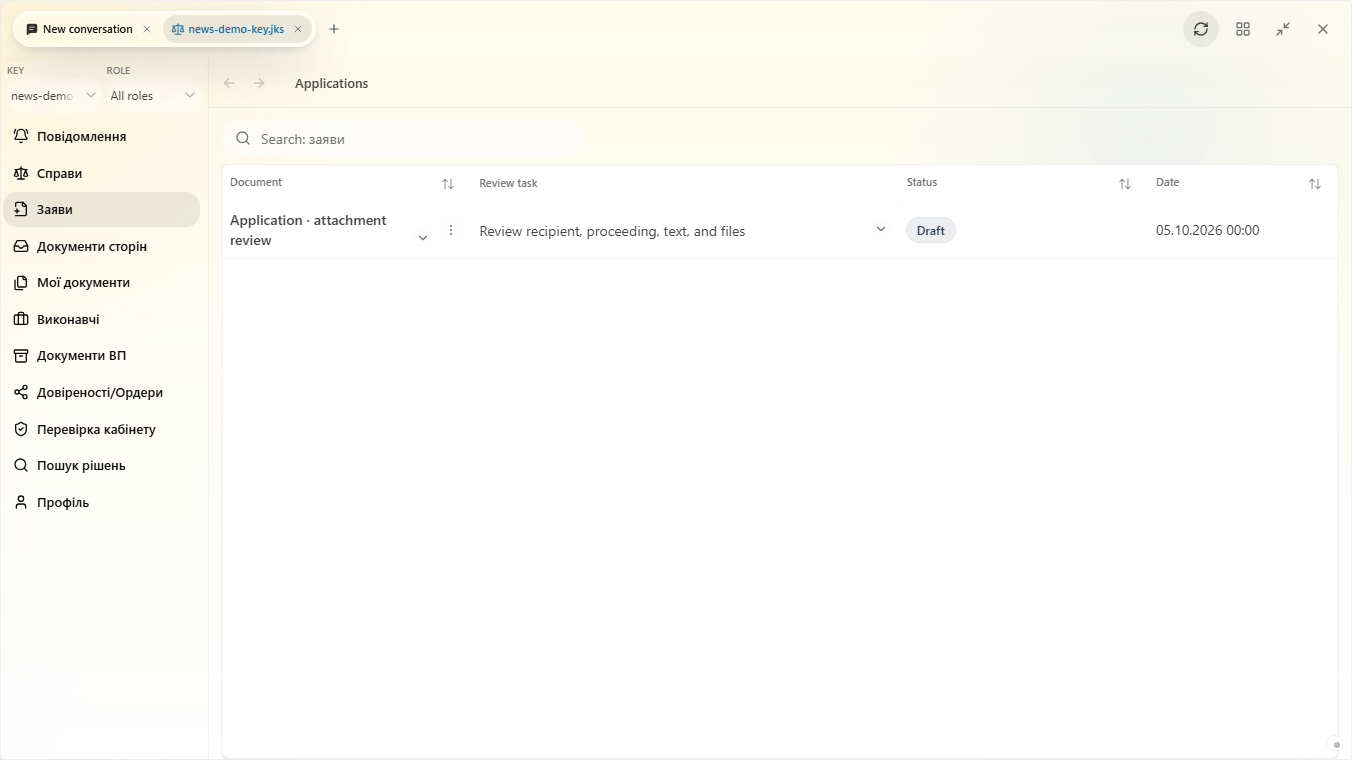
3. Review the parts
| Part | Open |
|---|---|
| Fields | Identifiers and proceeding context |
| Text | Circumstances, sources, request |
| Attachments | Files and versions |
| Questions | Details the team must complete |
Save the draft and reopen the same application. Inspect its document identity and attachments. Give a specific revision request for a field or text section.
4. Prepare the next stage
Retain the review result and owners for open questions in the project. Before signing and submission, inspect the document, proceeding, recipients, and file collection.
Choose Prism to prepare an application together with its sources, attachments, and team questions. Use Electronic Court for the official cabinet and the Prism workspace to organize preparation material.